Make host file entries on the server and critical use workstations to bypass the need for the public DNS(Internet) connections.
The first thing to do is to open Notepad and select Run as administrator: 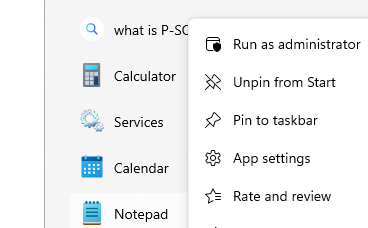 .
.
Next - use Notepad to edit the hosts file. This file is always located here: C:\Windows\System32\drivers\etc\hosts
If you don't run a s administrator then Notepad will force you to save the edited file in some other directory. Also - as Notepad opens - it sets the default file type to .txt so change this to All Files and you will see the hosts file.
Here is a typical default hosts file:
# Copyright (c) 1993-2009 Microsoft Corp.## This is a sample HOSTS file used by Microsoft TCP/IP for Windows.## This file contains the mappings of IP addresses to host names. Each# entry should be kept on an individual line. The IP address should# be placed in the first column followed by the corresponding host name.# The IP address and the host name should be separated by at least one# space.## Additionally, comments (such as these) may be inserted on individual# lines or following the machine name denoted by a '#' symbol.## For example:## 102.54.94.97 rhino.acme.com # source server# 38.25.63.10 x.acme.com # x client host# localhost name resolution is handled within DNS itself.# 127.0.0.1 localhost# ::1 localhost
With the file open - simply add a new line at the bottom. Specify the the ip and associated url for what you intend to have the internet bypass. The url will be the dns entry that is created for the Customer. Here is an example:
Here is the format:{virtual network ip} {environment name}{app name}.{domain name}.comHere is an example:172.16.10.100 uattestsvr1scrapdragon.scrapdragon.com
The app name you will choose from are:scrapdragonportalezcashjpeggergrafana
Others may be added to this list at a later date.
The 172.16.10.100 is the standard ip for the virtual network on many servers. You can tell if your particular server has a virtual network by hovering over the Network icon in your tray. It will look like this:
If you see the vEthernet (Scrapdragon NAT Switch) line - this indicates that you have a virtual network on your machine. If you don't see this - see your System Admin for then the ip you will need to use.
Testing: To test if you edited your hosts file correctly - simply run the app you specified as the app name. If it doesn't work - you did something wrong.